

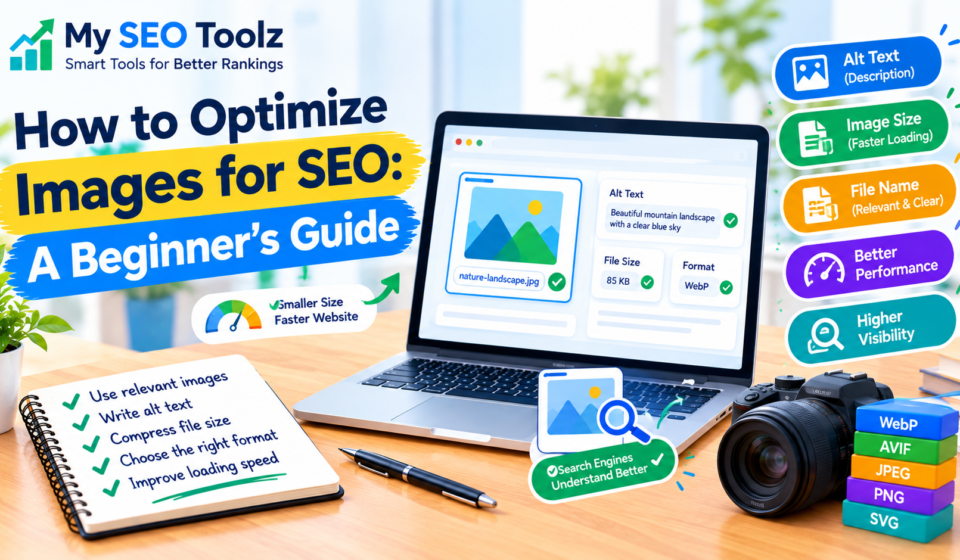

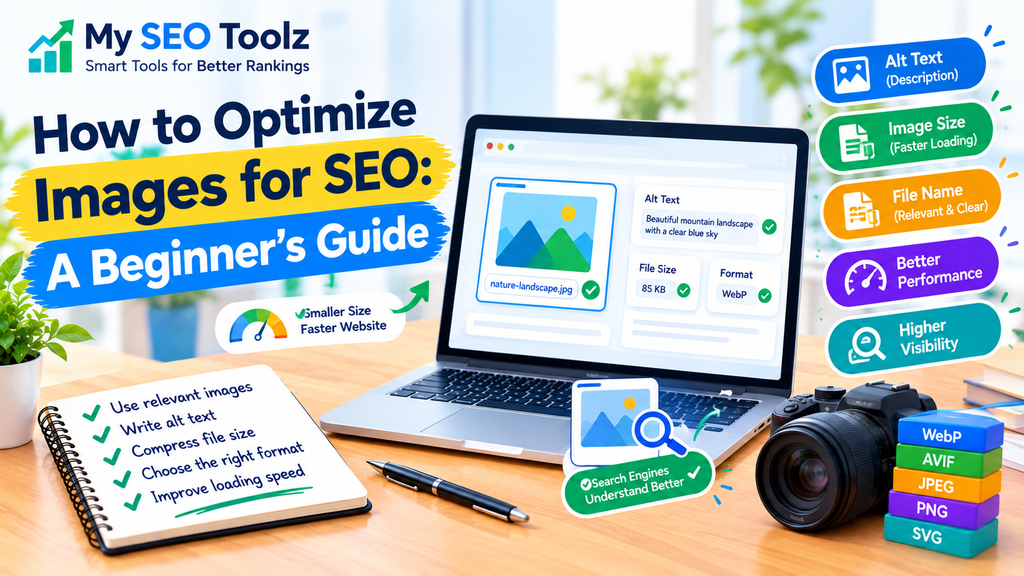
Images make a website more interesting and help readers understand information more easily. A useful screenshot, illustration, or product image can explain something that would take several paragraphs to describe.
However, adding images to a website is not enough. Large image files can slow down a page, unclear file names provide little context, and missing alternative text can make images harder to understand for people using screen readers.
This is why image SEO matters.
Image SEO is the process of making website images easier to understand, access, and load efficiently. It includes choosing suitable image formats, writing helpful alt text, using descriptive file names, and making sure images fit the page properly.
In this guide, you will learn how to optimize images for SEO with simple steps you can follow on your own website.
What Is Image SEO?
Image SEO means optimizing images so search engines and visitors can understand and use them more easily.
Search engines can use information such as image context, surrounding text, file names, and alternative text to understand what an image represents. Image optimization can also improve page loading performance and accessibility.
For example, imagine you publish a blog post about keyword research. Instead of uploading a file named IMG1234.jpg, you could use a descriptive name such as keyword-research-dashboard.jpg if it accurately describes the image.
You can also write suitable alt text that explains the important content of the image.
These small improvements help make your pages more organized and useful. They do not guarantee higher rankings, but they are sensible parts of a good website optimization process.
Why Is Image Optimization Important?
1. It Helps Search Engines Understand Images
Search engines cannot interpret every image in exactly the same way a person does. Descriptive file names, relevant alt text, and useful surrounding content provide additional context.
For example, an image of an SEO dashboard will be easier to understand when it appears in an article about keyword research rather than on an unrelated page.
2. It Can Improve Page Loading Speed
Large images can increase the amount of data a browser needs to download. This can make a page feel slow, particularly for visitors using mobile connections.
Resizing images and compressing them appropriately can reduce file sizes while keeping them clear enough for their purpose.
3. It Makes Content More Accessible
People who use screen readers may rely on alternative text to understand meaningful images. Writing accurate alt text helps describe the important information conveyed by those images.
Decorative images that do not add useful information can often use empty alt text so assistive technology can skip them.
4. It Can Help Images Appear in Image Search
Useful image information and relevant page content can help search engines understand images. This may create opportunities for visibility in image search results.
However, no single image optimization technique guarantees that an image will appear in Google Images.
How to Optimize Images for SEO
Step 1: Choose Relevant Images
Start by choosing images that genuinely support your content.
If your article explains how to write SEO titles, a screenshot of a title editor or a relevant example may be more useful than a generic decorative picture.
Ask yourself whether the image helps readers understand the topic. If it adds no value, you may not need it.
Whenever possible, use original screenshots, diagrams, or illustrations that make your explanation clearer. Make sure you have permission to use images that belong to someone else.
Step 2: Use Descriptive Image File Names
Before uploading an image, give the file a clear name.
For example:
- Poor file name:
IMG_2026_45.jpg - Better file name:
seo-title-optimization.jpg
The second name gives a clearer idea of what the image contains.
Keep file names short and descriptive. Use hyphens to separate words and avoid adding unrelated keywords.
You do not need to include your focus keyphrase in every image file name. Describe the actual image instead.
Step 3: Write Helpful Alt Text
Alt text, or alternative text, describes the meaningful content of an image for people who cannot see it. It also provides search engines with additional context.
For example, if your image shows a laptop displaying keyword research results, suitable alt text might be:
“Keyword research dashboard showing search terms and keyword metrics.”
The best alt text depends on what is actually visible in the image.
Keep these points in mind:
- Describe the important content of the image.
- Keep the wording clear and natural.
- Include a keyword only when it accurately describes the image.
- Avoid repeating the same keyword unnecessarily.
- Do not begin every alt text with phrases such as “image of” unless that wording is useful.
For decorative images, an empty alt attribute may be appropriate. In WordPress, you can usually enter the alt text in the image settings or Media Library.
Step 4: Compress Images Without Losing Too Much Quality
Image compression reduces file size so the browser has less data to download.
A very large image may look sharp, but it can be unnecessarily heavy for a small space on a webpage. On the other hand, excessive compression can make text and details blurry.
Choose a balance between image quality and file size.
You can use an image editor or a suitable compression tool before uploading. After compression, check that the image still looks clear on desktop and mobile screens.
There is no single file-size limit that works for every image. The goal is to keep images as small as practical without damaging their usefulness.
Step 5: Choose the Right Image Format
Different image formats work well for different purposes.
WebP: Often provides good compression for photographs and other website images.
AVIF: Can provide efficient compression and good image quality, although you should ensure your workflow and tools support it.
JPEG: Commonly used for photographs and complex images.
PNG: Useful when you need lossless quality or transparency, though some PNG files can be large.
SVG: Useful for many logos and simple vector graphics.
Choose a format based on the image and your website’s needs. You do not have to convert every image to the same format.
Step 6: Resize Images to Suit Your Layout
Uploading an image that is much larger than its display size can waste bandwidth.
For example, if an image will appear in a small blog card, you may not need to upload an enormous original file. Prepare an appropriately sized version while keeping enough resolution for clear display.
WordPress and many themes create multiple image sizes automatically. Check how your theme displays images and whether it serves suitable sizes to visitors.
Also, make sure important images do not look stretched, cropped incorrectly, or blurry.
Step 7: Write a Useful Image Caption When Needed
A caption is text displayed with an image. It can explain a screenshot, identify an example, or give readers helpful context.
For example:
“Example of a keyword research dashboard showing search terms and competition data.”
Captions are optional. Use them when they genuinely help readers understand the image rather than adding the same sentence under every picture.
Remember that captions and alt text serve different purposes. Alt text supports accessibility, while captions are visible to readers.
Step 8: Place Images Near Relevant Content
Add images close to the paragraphs that explain them.
If you include a screenshot of a WordPress alt text field, place it near the section that explains how to add alt text. This makes the article easier to follow.
Relevant surrounding text can also help search engines understand the image’s context.
Avoid adding images just to increase the length of an article. Each image should support the reader’s experience.
Step 9: Make Images Work Well on Mobile
Many visitors browse websites on phones, so images should fit smaller screens.
Use a responsive theme and check that images do not overflow their containers. Important details should remain visible, and text inside a banner should be readable where possible.
Avoid using a very large image when a smaller version would provide the same experience.
If your theme supports responsive images, WordPress may automatically provide different image sizes for different screens.
Step 10: Use Lazy Loading Carefully
Lazy loading allows certain images to load when visitors approach them while scrolling, instead of downloading every image immediately.
This can help pages with many images use bandwidth more efficiently.
However, the main image visible as soon as a page opens may need to load quickly. Avoid delaying the loading of a prominent hero image if doing so makes the page feel slower.
WordPress may apply lazy loading automatically. Check your site’s behavior before adding another plugin that duplicates existing functionality.
Step 11: Create an Image Sitemap When Appropriate
An image sitemap can help search engines discover images, particularly when they are difficult to find through normal page links.
For many WordPress websites, an SEO plugin or sitemap plugin already includes images in the sitemap. Check your current setup before creating another one.
A sitemap helps with discovery, but it does not guarantee indexing or rankings.
Step 12: Check Your Images After Publishing
After publishing an article, open the page on desktop and mobile.
Check that:
- Images display correctly.
- Important details are clear.
- Alt text describes meaningful images.
- File sizes are reasonable.
- Images do not slow down the page unnecessarily.
- Captions appear correctly where used.
- Links and surrounding text make sense.
You can also use Google Search Console to review search performance and Google’s PageSpeed Insights to investigate page performance.
Common Image SEO Mistakes to Avoid
Stuffing Keywords Into Alt Text
Alt text should describe the image, not serve as a list of keywords.
For example, “SEO image SEO keywords SEO ranking SEO website” is not a helpful description.
Write a natural sentence that explains what the image shows.
Uploading Huge Images Without Resizing
A large image can increase loading time when its full resolution is unnecessary. Resize and compress it to suit the page.
Using Unrelated Stock Images
An image should support the topic. A generic picture that adds no useful information may not improve the article.
Forgetting Accessibility
Do not use file names or captions as a substitute for meaningful alt text when an image needs a description. Also, avoid putting important information only inside an image if you can provide it as readable page text.
Adding Captions to Every Image
Captions are useful when they explain something. They are not mandatory for every image, and repeating the same information can make a page cluttered.
How Image SEO Supports SEO, AEO, and GEO
SEO: Search Engine Optimization
Use descriptive file names, accurate alt text, suitable formats, and optimized file sizes. Keep images relevant to the page and make sure they load correctly.
These practices help support accessibility, page performance, and search engines’ understanding of your content.
AEO: Answer Engine Optimization
Use images that support clear explanations. For example, a screenshot showing where to enter alt text in WordPress can make a tutorial easier to follow.
Pair visual examples with concise explanations so readers can understand the process without guessing.
GEO: Generative Engine Optimization
Create useful, well-organized content and use relevant images that provide real context. Make sure image descriptions are accurate and that important information is also available in readable text.
These practices improve clarity and accessibility, but they cannot guarantee that an image or page will be referenced by an answer engine or generative search system.
Frequently Asked Questions
1. What is image SEO?
Image SEO means optimizing website images so they are easier to understand, accessible to visitors, and efficient to load. It includes alt text, descriptive file names, image compression, and appropriate sizing.
2. Does alt text help SEO?
Alt text primarily helps describe meaningful images for people using assistive technology. It also gives search engines additional information about image content. It should be accurate and useful rather than stuffed with keywords.
3. What is the best image format for SEO?
There is no single best format for every image. WebP and AVIF can offer efficient compression, JPEG is common for photographs, PNG can be useful for transparency, and SVG works well for many logos and vector graphics.
4. Should I add my focus keyword to every image?
No. Use a keyword in alt text or a file name only when it naturally and accurately describes the image. Repeating the same keyword across every image can make descriptions less useful.
5. Do image captions improve SEO?
Captions can provide useful context for readers, but they are not necessary for every image. Add a caption when it explains the image or helps readers understand an example.
6. How can I reduce image file size?
You can resize images to appropriate dimensions and compress them using an image editor or compression tool. Check the result to ensure the image remains clear.
7. Does image optimization guarantee higher Google rankings?
No. Image optimization is one part of improving a website. Search visibility depends on many factors, including relevance, content quality, competition, and technical accessibility.
8. Should I use lazy loading for every image?
Not necessarily. Lazy loading can help images farther down a page, but delaying the main image visible at the top may hurt the initial loading experience. Check how your website handles image loading.
Final Thoughts
Image SEO does not need to be complicated. Start by choosing relevant images, giving them descriptive file names, writing useful alt text, and reducing file sizes without making them blurry.
Then check that images fit your website layout and work well on mobile devices. Add captions when they help readers, and review your pages after publishing.
For My SEO Toolz, these simple habits can make blog posts easier to use and help build a more accessible website. Focus on making every image useful to readers instead of trying to add keywords everywhere.


[…] You can learn more in our guide to optimizing images for SEO. […]