
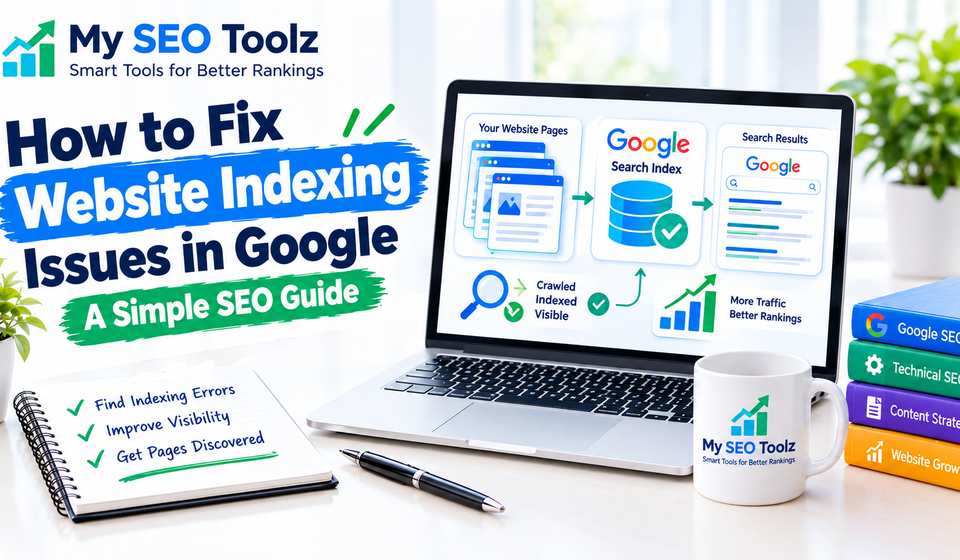

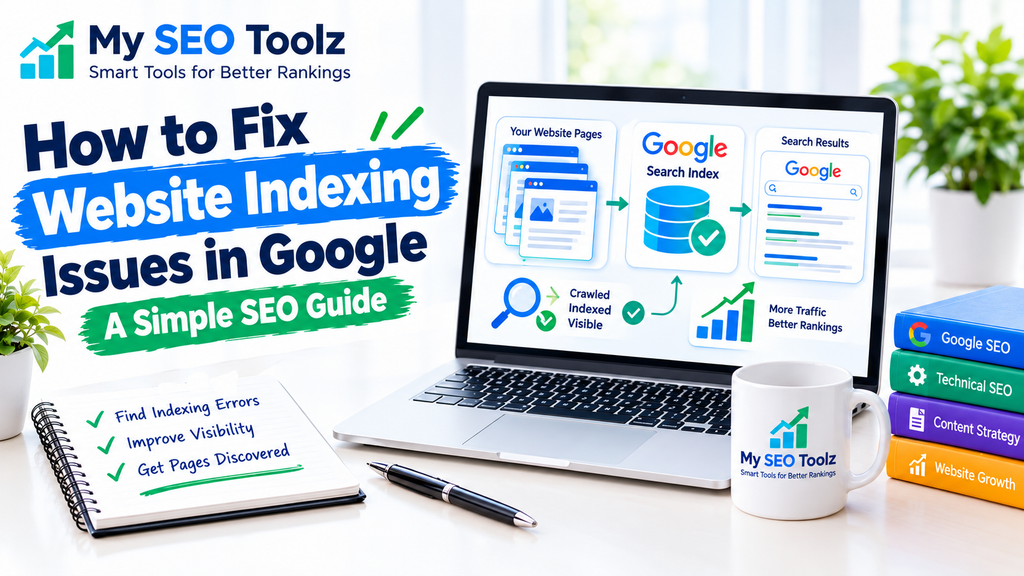
Getting your website indexed by Google is an important step toward increasing organic traffic. If your blog posts or website pages are not appearing in Google Search, you may have an indexing issue.
Many website owners face this problem, especially when their websites are new. Fortunately, you can identify and fix many indexing issues by using Google Search Console and following a few simple SEO practices.
In this guide, you will learn how to fix website indexing issues in Google and help search engines discover your important pages.
What Is Website Indexing?
Website indexing is the process through which Google analyzes a webpage and stores information about it in its search index. Once a page is indexed, it can appear in Google Search results.
However, indexing does not guarantee that your page will rank at the top of search results.
Google first discovers a page, crawls its content, and decides whether to include it in the index. If something prevents this process, your page may not appear in search results.
Understanding how indexing works can help you identify problems and improve your website’s search visibility.
Why Are Your Website Pages Not Indexed by Google?
There are several reasons why Google may not index your website pages. Some problems are technical, while others relate to content quality or website structure.
Common reasons include:
- Your website is new.
- Google has not discovered your pages.
- Your pages are blocked from indexing.
- Your website has technical errors.
- Your content is duplicated or provides limited value.
- Your XML sitemap has problems.
- Your pages have few internal links.
- Your website experiences server errors.
Before fixing anything, identify the specific issue affecting your website. This will help you avoid unnecessary changes.
1. Check Whether Google Has Indexed Your Website
Start by checking whether your website appears in Google Search results.
Open Google and search for your website’s domain using the site search option. This can show some pages from your website that Google has indexed.
For example, you can check My SEO Toolz by searching for its domain in Google.
If some pages appear, Google has indexed at least part of your website. If no pages appear, it does not necessarily mean your website has a serious problem. You should investigate further using Google Search Console.
The site search method is only a quick check. Google Search Console provides more detailed information about your website’s indexing status.
2. Use Google Search Console
Google Search Console is a free tool that helps website owners monitor their website’s performance and identify indexing issues.
Follow these steps:
- Open Google Search Console.
- Select your website property.
- Open the Page Indexing report.
- Review the pages that are indexed and not indexed.
- Select an issue to see the affected URLs.
- Inspect important pages to understand their current status.
The report may show reasons such as pages being excluded, blocked, or discovered but not indexed.
If your website is not verified in Google Search Console, complete the ownership verification process first. Once your website is verified, you can use the available reports to investigate indexing problems.
3. Check Your WordPress Indexing Settings
Sometimes, a simple WordPress setting can prevent Google from indexing your website.
If you use WordPress with Rank Math SEO, check the settings for your important pages and blog posts.
Open the page you want Google to index and review its advanced SEO settings. Make sure the page is allowed to appear in search results.
You should also visit your WordPress reading settings and check whether the option that discourages search engines from indexing the website has been enabled accidentally.
If this setting is enabled unintentionally, turn it off and save your changes.
Only change these settings for pages you want search engines to index. Some pages should remain excluded from search results for legitimate reasons.
4. Check Your Website’s Robots Settings
Your website has settings that guide search engine crawlers. Incorrect settings can prevent Google from accessing important pages.
Review your website’s robots.txt file and make sure important sections of your website are not accidentally blocked.
If you find a rule that prevents Google from crawling your blog posts or important pages, investigate its source before making changes.
Keep in mind that crawling and indexing are different. Allowing Google to crawl a page does not guarantee that Google will index it, but unnecessary crawling restrictions can create problems.
If you are unsure about these settings, review them carefully before making technical changes.
5. Submit Your XML Sitemap
An XML sitemap helps Google discover the important pages on your website.
If you use Rank Math SEO, the plugin can generate a sitemap automatically. You can find your sitemap through your website’s sitemap address.
After confirming that the sitemap is working correctly, open Google Search Console and select the Sitemaps section.
Submit your sitemap and check its status. If Google reports an error, review the sitemap settings and correct the problem.
Make sure your sitemap includes the correct URLs for pages you want indexed. Avoid including deleted pages, redirected URLs, or pages that should not appear in search results.
Submitting a sitemap can help Google discover your content, but it does not guarantee that every page will be indexed.
6. Improve Content Quality
One common indexing problem occurs when a page does not provide enough original or useful information.
Google may decide not to index a page if it offers little value compared with other pages covering the same topic.
To improve your content:
- Answer the reader’s main question clearly.
- Include useful examples and practical advice.
- Remove unnecessary repetition.
- Use clear headings and short paragraphs.
- Make sure the information is accurate and relevant.
- Add original insights where possible.
For your My SEO Toolz website, each article should help readers solve a specific problem. Avoid publishing several articles that repeat almost the same information.
Helpful content gives readers a reason to visit your website and can improve the overall quality of your site.
7. Fix Crawled but Not Indexed Pages
Google Search Console may show a status indicating that a page has been crawled but not indexed.
This means Google has visited the page but has not included it in its search index at that time.
Possible reasons include duplicate content, limited original information, or Google’s decision not to index the page yet.
Start by reviewing the page carefully. Check whether it provides useful information and whether it overlaps too much with other articles on your website.
Improve the content where necessary, make sure the page is accessible, and add relevant internal links.
Once you have made meaningful improvements, you can request indexing through Google Search Console. However, Google makes the final decision about whether the page will be indexed.
8. Add Relevant Internal Links
Internal links connect related pages on your website. They help visitors find useful information and help search engines discover your content.
If an important blog post has no internal links pointing to it, search engines may have more difficulty discovering that page.
You can improve your internal linking by adding links from relevant published articles to other useful pages on your website.
For example, an article about website indexing can link to your published guide about using Google Search Console to improve SEO.
You can also connect related articles about website loading speed, organic traffic, and website optimization where the links are useful to readers.
Use descriptive anchor text and make sure every internal link leads to the correct published article. Avoid linking to pages that do not exist.
9. Fix Duplicate Content Issues
Duplicate content occurs when the same or very similar information is available through multiple URLs or pages.
When Google finds several versions of similar content, it may select one preferred version and leave the others out of its index.
To reduce duplicate content problems, review similar pages and decide whether each one provides a distinct benefit to readers.
Make sure important pages use consistent preferred URLs. Where appropriate, use canonical settings or redirects to help search engines understand which version should be treated as the main page.
Do not delete useful content simply because two articles discuss related topics. Instead, make sure each article answers a different question or provides a distinct purpose.
10. Improve Website Loading Speed
Website performance can affect how visitors experience your website. Server problems and repeated timeouts can also interfere with Google’s ability to crawl pages reliably.
Check your website on desktop and mobile devices to make sure pages load properly.
You can improve performance by compressing images, using caching where appropriate, removing unnecessary plugins, and choosing reliable hosting.
Also, check for broken redirects and server errors that may prevent pages from loading correctly.
A faster website can provide a better user experience, but improving speed alone does not guarantee that Google will index your pages.
You can also read your published article about improving website loading speed for more practical tips.
11. Request Indexing After Fixing the Problem
After correcting an indexing issue, you can ask Google to check the page again.
Open Google Search Console and use the URL Inspection feature to examine the page you want indexed.
Review the page’s current status and test whether it is accessible to Google. If the page is available and eligible for indexing, you can use the Request Indexing option.
This can help Google recrawl an updated page, but it does not guarantee immediate indexing.
Avoid repeatedly submitting the same unchanged URL. Focus on correcting the problem first and allow Google time to process your changes.
12. Monitor Your Website’s Indexing Progress
After making changes, continue checking Google Search Console to understand whether your website is improving.
Pay attention to the number of indexed pages, new indexing issues, sitemap status, and the reasons given for pages that remain unindexed.
If Google reports an issue, review the affected pages and correct the underlying cause before asking Google to validate the fix.
Remember that not every page needs to be indexed. Focus on important blog posts, useful landing pages, and other content that should appear in search results.
Regular monitoring can help you identify problems early and maintain a healthier website.
Common Website Indexing Problems and Their Solutions
Pages not indexed: Check Google Search Console to identify the specific reason.
Pages blocked from indexing: Review your WordPress and SEO plugin settings.
Sitemap problems: Check that your sitemap works correctly and contains the right URLs.
Crawled but not indexed: Review content quality, duplication, and internal linking.
Duplicate pages: Review preferred URLs and canonical settings.
Server errors: Investigate hosting problems and make sure your pages load correctly.
New pages not discovered: Improve internal linking and submit your sitemap.
Always check the exact issue before applying a solution. Different indexing problems require different fixes.
Frequently Asked Questions
1. Why is my website not showing on Google?
Your website may be new, not yet indexed, blocked from crawling, or affected by technical or content problems. Google Search Console can help you identify the cause.
2. How can I index my website on Google for free?
Verify your website in Google Search Console, submit your sitemap, make sure important pages are accessible, publish useful content, and create relevant internal links.
3. How long does Google take to index a website?
Indexing time varies. Some pages may be indexed within days, while others can take longer or may not be indexed at all.
4. Does submitting a sitemap guarantee indexing?
No. A sitemap helps Google discover your pages, but Google decides which pages to index.
5. Can Rank Math SEO help with indexing issues?
Yes. Rank Math can help you manage sitemaps and indexing settings. However, some problems require changes to your content, website structure, or hosting.
6. Should I request indexing after every update?
You do not need to request indexing after every small update. It is more useful when you publish an important new page or make significant improvements to a page that needs to be recrawled.
7. Why are some of my blog posts indexed while others are not?
Different pages may have different technical settings, content quality, internal links, and levels of usefulness. Review each affected URL in Google Search Console to understand its specific situation.
Conclusion
Fixing website indexing issues in Google begins with identifying the reason your pages are missing from search results. Google Search Console, correct WordPress settings, XML sitemaps, internal links, and useful content can help you resolve many common problems.
For My SEO Toolz, focus on publishing helpful articles, connecting related posts, and making sure your important pages are accessible to search engines.
Be patient after making changes because Google needs time to recrawl and evaluate your pages. Consistent website maintenance and useful content can help build a stronger foundation for long-term organic traffic.