

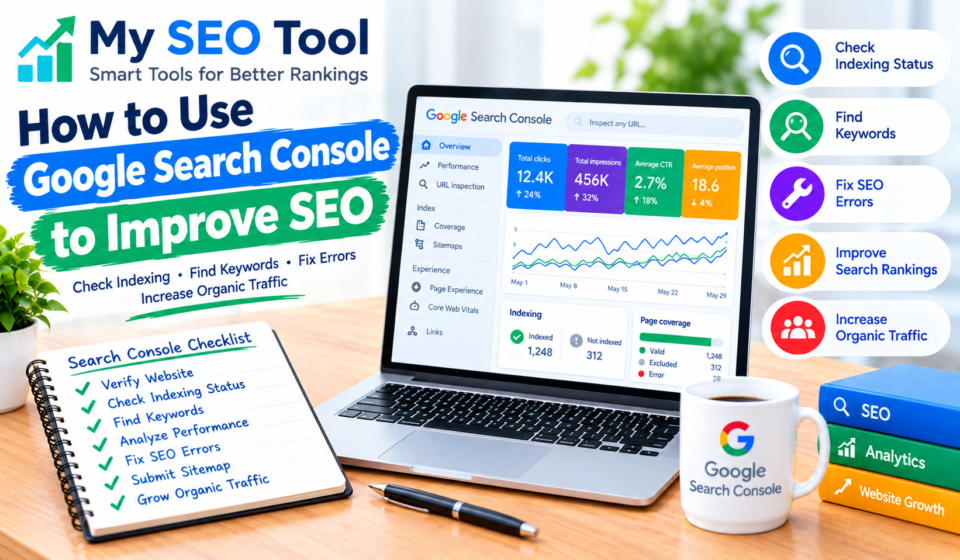

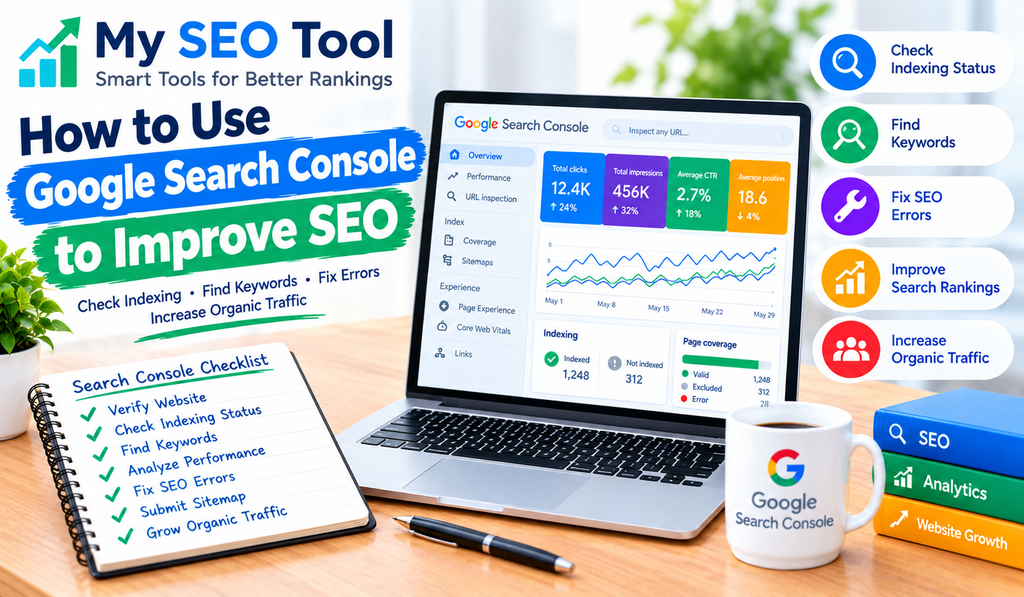
Getting your website published is only the first step toward attracting visitors from Google. To understand how people find your website, which pages appear in search results, and where improvements are needed, you need to monitor your website’s search performance.
Google Search Console is a free tool that helps website owners understand how their pages perform in Google Search. It provides useful information about clicks, impressions, search queries, indexing, and technical issues.
Whether you run a blog, a business website, or an SEO tools website like My SEO Toolz, learning how to use Google Search Console can help you make better decisions about your content.
In this guide, you will learn how to set up Google Search Console, understand its main reports, find SEO opportunities, and use the information to improve your website over time.
What Is Google Search Console?
Google Search Console (GSC) is a free service from Google that helps you monitor and troubleshoot your website’s presence in Google Search.
It shows how your website performs in search results and can alert you to certain indexing, security, and website experience issues.
With Google Search Console, you can:
- Check clicks and impressions from Google Search.
- Find search queries that display your website.
- See which pages are indexed.
- Submit your XML sitemap.
- Inspect individual URLs.
- Review certain mobile usability and page experience information where available.
- Identify some technical or security problems.
Google Search Console does not directly change your rankings. Instead, it gives you information that can help you identify problems and decide what to improve.
Why Is Google Search Console Important for SEO?
Google Search Console helps you understand what is happening after you publish content.
For example, you might publish an article about keyword research and expect it to attract visitors. GSC can help you check whether the page appears in search results, which queries show it, and whether people click through to your website.
This information can help you improve existing content instead of guessing what needs to change.
1. Understand Your Search Performance
The Performance report shows how your website performs in Google Search. You can review clicks, impressions, click-through rate, and average position.
These metrics help you understand whether your pages are appearing in search results and attracting visitors.
2. Discover Search Queries
The Queries section shows the search terms associated with your website’s search performance.
You may discover that a page appears for useful phrases you did not specifically target. These findings can give you ideas for improving the page or creating related content.
3. Check Whether Pages Are Indexed
Google must generally index a page before it can appear in ordinary Google Search results.
The indexing reports help you understand which pages Google has indexed and which pages have encountered particular indexing issues.
4. Find Technical SEO Problems
Search Console can report certain technical problems, including sitemap processing issues, crawling problems, and security concerns.
Fixing relevant problems can help Google access and understand your website more effectively.
How to Set Up Google Search Console
If you have not connected your website yet, follow these steps.
Step 1: Open Google Search Console
Visit the official website:
https://search.google.com/search-console
Sign in with the Google account you want to use to manage your website.
Step 2: Add Your Website
Google Search Console offers two main property types:
- Domain property: Covers the domain and its subdomains and protocols.
- URL-prefix property: Covers URLs that begin with the exact prefix you enter.
A Domain property is useful when you want to monitor the website across different subdomains and protocols. It requires DNS verification.
A URL-prefix property can be verified using one of the methods Google supports for that property.
Step 3: Verify Website Ownership
Follow the verification instructions shown in Search Console.
For a Domain property, Google typically asks you to add a DNS TXT record through your domain provider or DNS hosting service.
For a URL-prefix property, available verification methods may include an HTML file, an HTML tag, Google Analytics, Google Tag Manager, or DNS, depending on your setup.
If you use WordPress with Rank Math SEO, you may be able to add Google’s verification HTML tag through the plugin’s Webmaster Tools settings.
Copy the verification value supplied by Google. Do not copy an example code from another website.
After completing the required step, return to Search Console and click Verify.
If verification fails, check that the record or tag is installed in the correct place. DNS changes can take time to become visible.
Step 4: Submit Your XML Sitemap
A sitemap helps Google discover the URLs you want it to know about.
In Search Console:
- Select your website property.
- Open Sitemaps from the left-hand menu.
- Enter your sitemap URL.
- Click Submit.
If you use Rank Math SEO, your sitemap is often available at:
https://myseotoolz.com/sitemap_index.xml
First, open that address in your browser to check that it works. If your website uses a different sitemap URL, submit the correct one instead.
Submitting a sitemap does not guarantee that Google will index every listed page.
How to Use the Performance Report
The Performance report is one of the most useful places to start when working on SEO.
Open Search Console, select your website, and click Search results under the Performance section.
You will see several important metrics.
Clicks
Clicks show how many times users clicked your website from the selected Google Search results report.
If clicks increase over time, your website may be attracting more search visitors. Compare similar date ranges before deciding whether performance has improved.
Impressions
An impression generally means a link to your website was shown in Google Search results.
A page can receive many impressions but few clicks. This may suggest that you should review the search intent, title, description, or position of the page.
Average CTR
CTR stands for click-through rate. It represents the percentage of impressions that resulted in clicks.
For example, if a page receives 1,000 impressions and 40 clicks, its CTR is 4%.
A low CTR does not automatically mean something is wrong. Results vary depending on the search query, position, device, and type of search result.
Average Position
Average position is an approximate summary of your website’s highest result position for the recorded impressions.
It is not a fixed ranking for every search. Positions can vary by query, location, device, and time.
Use this metric alongside clicks, impressions, and the actual queries people use.
How to Find SEO Opportunities in Search Console
Once you understand the main metrics, use them to find practical ways to improve your website.
1. Find Pages With High Impressions but Few Clicks
Open the Performance report and review pages receiving impressions.
Look for pages that appear regularly in search results but receive fewer clicks than you would reasonably expect.
Then review the page’s target audience and search intent. Check whether its title clearly explains the benefit of visiting the page and whether the content answers the searcher’s question.
You can also review your meta description to ensure that it accurately summarizes the page.
Do not change titles simply because CTR looks low. Consider the average position, query type, and other factors first.
2. Discover Useful Keywords
In the Performance report, open the Queries tab.
Review the queries that generate impressions and clicks. Look for relevant terms that match the subject of your page.
For example, if your article about keyword research receives impressions for a phrase related to finding low-competition keywords, you could make sure the article answers that question clearly.
You can learn more in your existing guide about keyword research for beginners.
Use real search query data to improve the content naturally. Avoid adding keywords that do not fit the topic.
3. Improve Pages That Need More Useful Content
If a page receives impressions but little engagement from search results, review whether it satisfies the reader’s needs.
Ask yourself:
- Does the introduction answer the main question?
- Are the headings clear and useful?
- Is the information accurate and up to date?
- Does the page explain the topic in enough detail?
- Are examples included where they would help?
- Can readers find related information easily?
If necessary, improve the page with clearer explanations, helpful examples, and links to related articles.
For additional guidance, link this section to your published article about creating SEO-friendly blog.
4. Identify Pages With Falling Clicks
Compare the latest period with a previous period of similar length.
If clicks decline, check whether impressions, CTR, or average position have also changed.
A drop may relate to seasonal demand, changes in search results, competition, changes to the page, or other factors. Search Console provides clues, but it may not identify the exact cause.
Review the affected queries and pages before making major changes.
5. Compare Mobile and Desktop Performance
Use the device filter in the Performance report to compare mobile, desktop, and tablet performance where data is available.
If mobile performance is weaker, inspect the page on a phone. Check whether text is readable, buttons are easy to use, images fit the screen, and the main content loads correctly.
You can also review your published guide to improving website loading speed for practical performance improvements.
How to Use URL Inspection
The URL Inspection tool lets you examine an individual URL in relation to Google’s indexing system.
To use it:
- Open Google Search Console.
- Select the correct website property.
- Paste the complete page URL into the inspection field at the top.
- Review the indexing information.
- If appropriate, click Test Live URL to check the page as Google can access it now.
- If the page is eligible and you have made changes, you can request indexing.
The live test and the existing Google index report serve different purposes. A successful live test does not guarantee that Google will index the page.
Use URL Inspection when you publish an important article, update a page, or investigate why a URL is not appearing in search results.
How to Check Website Indexing
Open the Page indexing report in Search Console to review indexing information for your property.
You may see categories for indexed pages and pages that are not indexed for various reasons.
Not every non-indexed URL is a problem. For example, duplicate URLs, redirected pages, or pages intentionally excluded from indexing may not need to be indexed.
Focus on important pages that should appear in search results but are not indexed.
For those pages, check:
- Whether the page returns a successful HTTP response.
- Whether it contains a
noindexdirective. - Whether robots.txt is preventing crawling.
- Whether the page has useful, original content.
- Whether internal links point to the correct URL.
- Whether the sitemap includes the intended canonical URL.
After fixing a relevant issue, use the available validation or indexing request options where appropriate.
How Internal Links Support Your SEO Work
Internal links connect related pages on your website. They can help visitors find useful resources and give search engines additional paths to discover content.
For example, an article about Google Search Console could link to your technical SEO guide when discussing indexing and crawling.
When reviewing your website, identify important pages that have few internal links. Add relevant links from related published articles using descriptive anchor text.
Read your guide on building an effective internal linking strategy for more details.
Only add links that genuinely help readers. Do not link unrelated pages or create links to URLs that do not exist.
Common Google Search Console Mistakes to Avoid
Expecting Instant Results
Search engines need time to crawl, process, and potentially index changes. Requesting indexing does not guarantee immediate inclusion.
Making Changes Based on One Day of Data
Daily search performance can fluctuate. Compare longer, similar date ranges and consider seasonality before making decisions.
Trying to Fix Every Excluded URL
Some URLs should not be indexed. Understand why a page is excluded before deciding that it needs a fix.
Ignoring Search Intent
Adding more keywords will not necessarily improve a page. Make sure the content answers the question behind the search query.
Forgetting to Check the Correct Property
Search Console properties may cover different URL versions or parts of a domain. Confirm that you are viewing the correct property when investigating missing data.
Assuming Search Console Guarantees Rankings
Search Console provides reports and diagnostic information. It does not guarantee indexing, traffic growth, or higher rankings.
Frequently Asked Questions
Is Google Search Console free?
Yes. Google Search Console is a free service for monitoring and troubleshooting your website’s presence in Google Search.
How often should I check Google Search Console?
For a new website, checking once or twice a week is a reasonable starting point. You can review performance monthly and investigate important issues whenever they arise.
Does Google Search Console improve rankings automatically?
No. It provides data and tools that help you understand search performance and identify potential problems. You must decide which improvements are appropriate for your website.
Why is my website not showing in Google Search?
Possible reasons include incomplete verification, crawling problems, indexing restrictions, new content that has not yet been processed, or other technical and content issues. Use URL Inspection and Page indexing reports to investigate.
How long does Google take to index a new page?
There is no guaranteed timeframe. It may take days or longer, and some pages may not be indexed. Make sure the page is accessible, useful, internally linked, and eligible for indexing.
Can I use Google Search Console with WordPress?
Yes. You can verify a WordPress website using a supported verification method and use Search Console to monitor search performance, indexing, and sitemap processing.
Should I submit a sitemap after every blog post?
You usually do not need to submit the sitemap again for every new post if your sitemap updates automatically. Check that the new URL appears in the sitemap and that Google can access it.
Final Thoughts
Google Search Console is a useful tool for understanding how your website performs in Google Search. It helps you review search queries, clicks, impressions, indexing information, and certain technical issues.
Start by verifying your website, submitting your sitemap, and reviewing the Performance report. Use the data to identify relevant search queries, improve pages that need attention, and investigate indexing problems.
For My SEO Toolz, make Google Search Console part of your regular website routine. Combine its reports with helpful content, clear navigation, relevant internal links, and a technically sound website.
Consistent monitoring and useful improvements can help you understand your site’s progress and make more informed SEO decisions over time.